---
title: Template variables: dynamically filter dashboards
source: https://docs.newrelic.com/docs/query-your-data/explore-query-data/dashboards/dashboard-template-variables
---
For custom dashboards, you can use **template variables** to dynamically filter charts and other widgets. Template variables make your dashboards more useful and help you more easily create dashboards that you can reuse for different use cases. You can also use variables to condition the value of other variables. For more information, refer to [nested variables](https://docs.newrelic.com/docs/query-your-data/explore-query-data/dashboards/nested-variables).
## Why use template variables? [#defined]
Template variables are a powerful and dynamic way of filtering an entire dashboard based on specific metadata values a dashboard creator chooses. The benefits of using template variables are:
- They make dashboards easier to use: Your users don't have to understand the structure of the data; they can simply choose from the various filter options you've set.
- They allow you to create reusable dashboard templates that you can then duplicate and customize for many other uses.
Here's an example of a dashboard with several template variables, which you can see at the top of the dashboard.
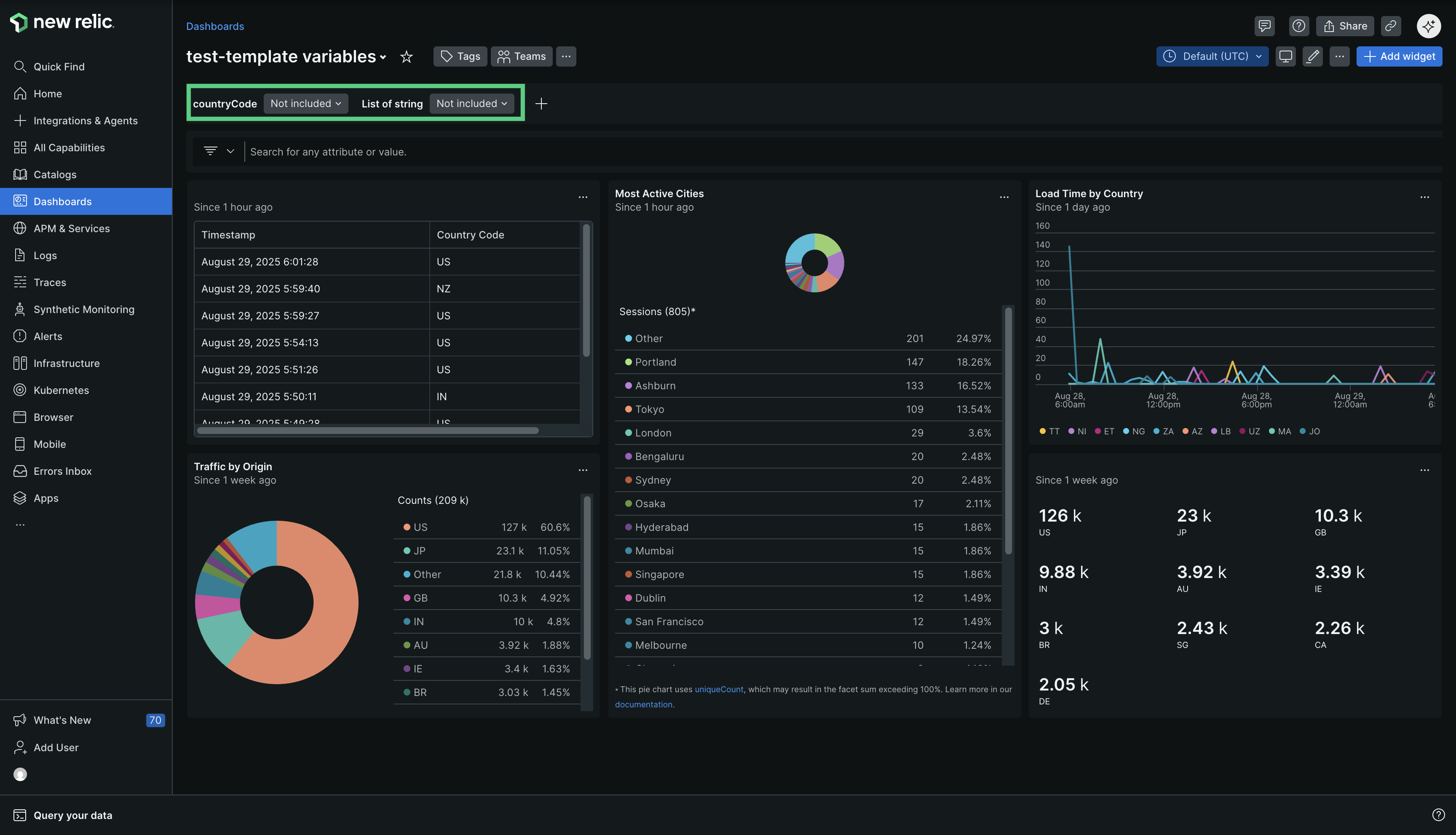
Go to **[one.newrelic.com > All capabilities](https://one.newrelic.com/all-capabilities) > Dashboards**
With template variables, you can set up a wide variety of variables and filters to create the dashboard experience you need. Examples of experiences you can create:
- A dropdown to choose an app name
- A dropdown to choose specific regions
- A dropdown to select specific durations or other numeric values
- Filters that use free text fields to find matching strings
Furthermore, you can now decide if you want to include the variable or not without having to modify your queries. See the [Include variable](https://docs.newrelic.com/docs/query-your-data/explore-query-data/dashboards/dashboard-template-variables/#include-variable) section for details.
## Show and hide variables [#variable-visibility]
You can hide template variables from the variables bar in View mode while they continue to function normally. In Edit mode, hidden variables display with a icon, so dashboard editors can identify and manage them.
We recommend hiding variables that:
- Clutter the variables bar, such as [nested variables](https://docs.newrelic.com/docs/query-your-data/explore-query-data/dashboards/nested-variables)
- Control dashboard logic without requiring viewer input
- Derive values automatically from other variables
To hide a variable, use the **Hide on variables bar** option when [defining a template variable](#step1). To configure this programmatically, use the `hiddenOnVariablesBar` field in the [NerdGraph dashboards API](https://docs.newrelic.com/docs/apis/nerdgraph/examples/nerdgraph-dashboards).
> #### 💡 TIP
>
> To hide multiple variables at once, use the [NerdGraph dashboards API](https://docs.newrelic.com/docs/apis/nerdgraph/examples/nerdgraph-dashboards) to update multiple variables programmatically, as the UI only allows hiding variables one at a time.
## Requirements and limitations [#requirements]
Template variables can only be used in the context of making widgets for custom dashboards. For this reason, some query-related features don't work. For example, the `Export dashboard as PDF` option doesn't support widgets with variables, and [Lens](https://docs.newrelic.com/docs/new-relic-lens/query-data) SQL queries don't support template variables. See [NRQL variables](https://docs.newrelic.com/docs/query-your-data/nrql-new-relic-query-language/get-started/nrql-syntax-clauses-functions/#with-as-nrql-var) for using variables in a NRQL query.
Important points to note about adding a query:
- The variable you defined goes inside the `{{ … }}` brackets.
- The variable generates a string value.
- To help you when you're creating a query, there's a color code:
- Clauses, `FROM`, `SELECT`, `FACET`, and `WHERE`, are in pink.
- Identifiers are in black.
- Functions are in blue.
- Strings are in green.
- Integers are in brown.
- See our [How to use NRQL: the mechanics of querying](https://docs.newrelic.com/docs/query-your-data/nrql-new-relic-query-language/get-started/introduction-nrql-how-nrql-works/#syntax) page if you want to know more about writing queries with NRQL.
For restrictions related to writing queries, see [Writing queries](#query-variable-rules).
## Use template variables [#create-variables]
We'll walk you through creating a template variable, and then we'll give you a few [examples](#examples) of different kinds of template variables.
Creating a template variable consists of two steps.
### Define the template variable [#step1]
Define a template variable that you'll use in a NRQL query to create a widget.
To define a variable:
1. From a new dashboard without variables, click the edit button, and then click **+ Add variable** button.
If the dashboard includes widgets, click the **+ Add variable** button.

2. Complete the **Add variable** workflow. Following are some rules and tips for each of the fields.
| **Field** | **Details** |
| ---------------------------- | -------------------------------------------------------------------------------------------------------------------------------------------------------------------------------------------------------------------------------------------------------------------------------------------------------------------------------------------------------------------------------------------------------------------------------------------------------------------------------------------------------------------------------------------------------------------------------------------------------------------------------------------------------------------------------------------------------------------------------------------------------------------------------------------------------------------------------------------------------------------------------------------------------------------------------------------------------------------------------------------------------------------------------------------------------------------------------------------------------------------------------------------------------------------------------------------------------------------------------------------------------------------------------------------------------------------- |
| Name to use in queries | The name of the variable. This is what you'll use in the query, surrounded by `{{...}}`. For example, if you use `country` here as the name, then when writing a query you'll call the variable with `{{country}}`. Variable names must start with a letter and can contain letters, numbers, and underscores. |
| Display name | Optional. This is how the variable will display above the dashboard so that dashboard users know what the variable represents. If this is left blank, it will use the main name value. |
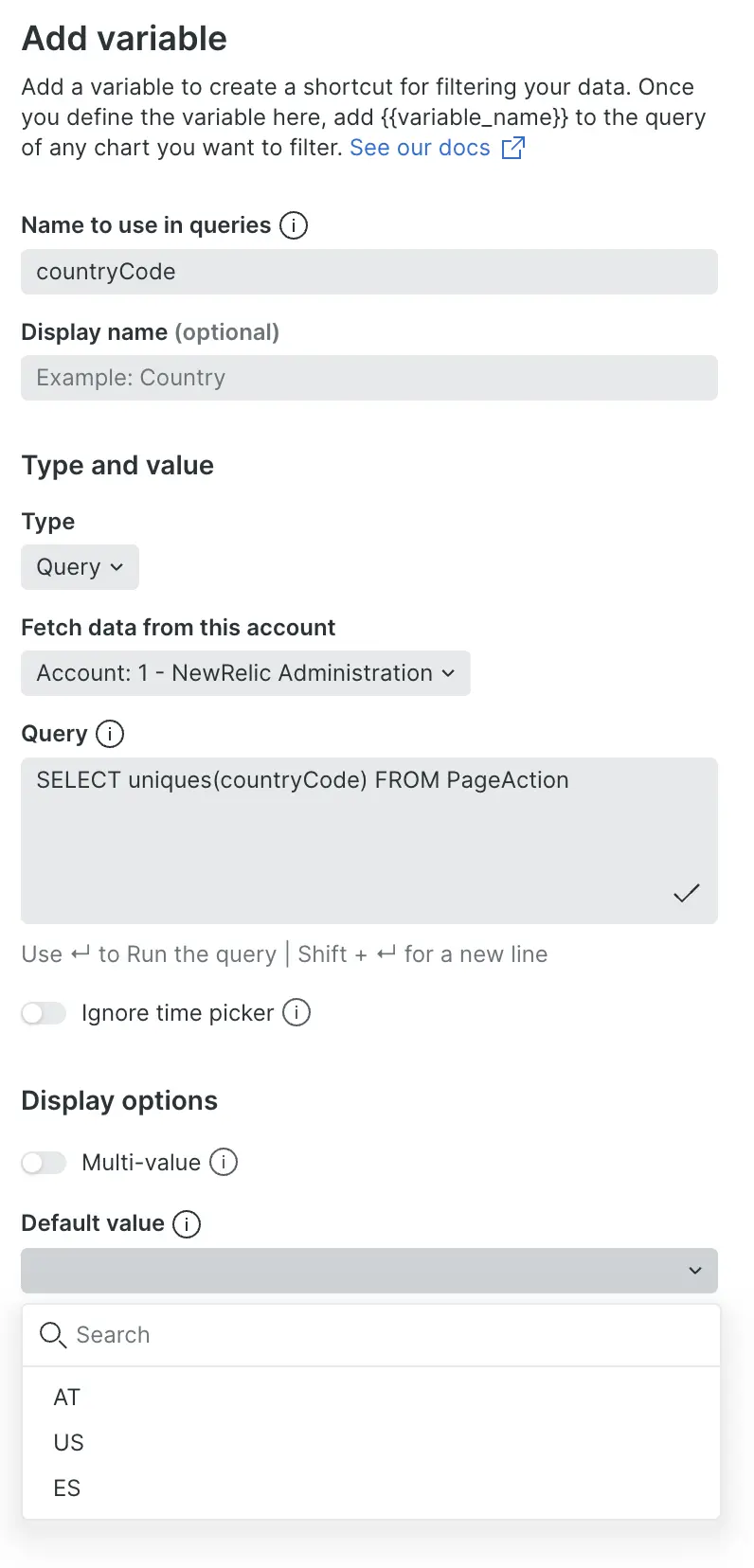
| Type | There are three options: - **Query**: You can write a query that will return a dynamic list of options used in the dropdown menu. For example, the following query would return a dynamic list of `country` values: ```sql SELECT uniques(countryCode) FROM PageAction SINCE 2 days ago ``` For rules and tips on writing queries, see [Query-type variables](#query-variable-rules). - **List**: A list of comma-separated values that are used to populate the options in the dropdown menu. For example, you could manually define a list of `country` values using a list like: `ES, US, CA.` - **Text field**: Instead of a dropdown of values to choose from, this allows dashboard users to filter for whatever text they input. |
| Fetch data from this account | Only present for `query` type. For organizations with multiple accounts, this sets the account that is queried. |
| Query | Write here your query using `uniques(attribute)`. |
| Ignore time picker | Optional. Only present for query type. By turning this option off, the query will be run using the selected time picker’s value in the dashboard. That way, when the value of the time picker changes, the results of the variable’s dropdown will dynamically respond to the new selected time range. |
| Multi-value | Optional. This option allows a dropdown to allow multiple selections at the same time instead of a single selection. |
| Show Apply button | Optional. Only appears when you enable **multi-value**. Enable this toggle to display an **Apply** or **Cancel** button at the bottom of the variable's dropdown filter. While this button appears on the dropdown filter, click it to apply changes to the values. |
| Default value | Optional. These are the default values that the dashboard will filter on. For example, if you used the `country` query above, you could input `ES` as the default value and the dashboard would automatically filter to that value. You can also select all possibilities. To use multiple values on a `WHERE` clause you need to use [`IN`](https://docs.newrelic.com/docs/query-your-data/nrql-new-relic-query-language/get-started/nrql-syntax-clauses-functions/#sel-where) instead of `=`. The **Include variable** toggle will determine the default configuration, include or exclude, for that variable in the dashboard. The user viewing the dashboard can modify this configuration using the **Include variable** toggle in the variable dropdown menu. The user-selected configuration will be valid for the duration of the session. For details on where to find this toggle and how it affects queries, see [Include and exclude variables](#include-variable). Note that you can only configure default values when the toggle is set to include variable. Once you select the default values you can switch the toggle so the variable is not included by default. The default values will be preselected when any user turns the toggle to include the variable from the variable dropdown menu. |
| Output format | This lets you change how the data generated by the variable is handled in the query. The selected option you choose here is related to the query you're going to add later in the widget. The **default** option is string because this is the more common option used in the majority of queries. You can change the **default** option to one of these: - **String**: Use this for non-numeric text values. - **Number**: Use this for numeric values. - **Identifier**: Use this when you want to substitute parts of the query, like event names or facet names. |
| Hide on variables bar | Optional. Hide the variable from the variables bar in View mode. Hidden variables continue to function normally. In Edit mode, hidden variables display with a icon. For more information, see [Show and hide variables](#variable-visibility). |
After defining your template variable, you can add a widget that uses your created template variable.
### Create widgets that use the template variable [#step2]
Once you've configured a template variable, you'll need widgets on a dashboard that use the variable that you've defined in their query.
To create a widget:
1. From your dashboard click **+ Add widget** button located at the top-right corner.
2. There are 2 options:
- Add a chart. You'll create your widget using the [query builder](https://docs.newrelic.com/docs/query-your-data/explore-query-data/query-builder/introduction-query-builder/).
- Add text, images, or links. You'll create your widget adding your own content using our [Markdown editor](https://docs.newrelic.com/docs/query-your-data/explore-query-data/dashboards/manage-your-dashboard/#markdown).
3. We choose **Add a chart** option.
4. Add your query and click **Run**.
Following our example mentioned in step 1:
```sql
SELECT countryCode
FROM PageAction
WHERE countryCode IN ({{countryCode}})
```

Notice that these are the NRQL clauses that will accept template variables as values: `SELECT`, `FROM`, `FACET`, `ORDER BY` and `WHERE`.
Instead, the following list of NRQL clauses will not accept template variables as arguments: `AS`, `COMPARE WITH`, `LIMIT`, `OFFSET`, `SINCE`, `SLIDE BY`, `TIMESERIES`, `UNTIL` and `WITH`.
5. (Optional) To customize the chart, select the **See customization options** icon beside the **Chart type** dropdown. For available options, refer [Customize your charts](https://docs.newrelic.com/docs/query-your-data/explore-query-data/use-charts/use-your-charts#customize-charts).
6. Click **Add to dashboard**
7. test
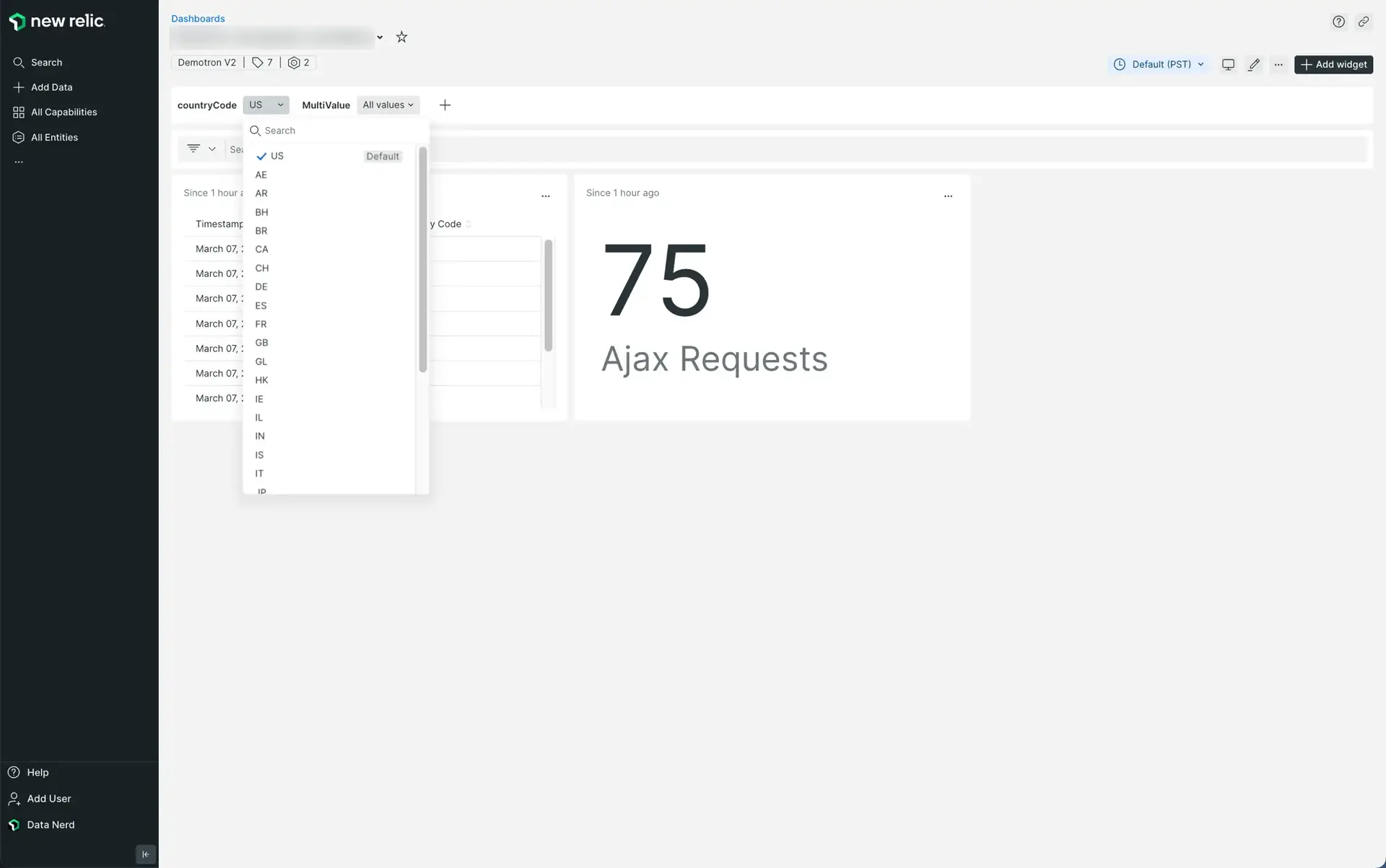
When you're done defining a template variable and adding a widget that references that variable, you can verify it's working as expected by choosing different options from the template variable bar and seeing if the widget changes based on your selection.
Here's an example of the resulting widget, on the right, with the `country` dropdown to the left.
## Include and exclude variables [#include-variable]
The **Include variable** toggle, on by default, controls whether the dashboard filters by the variable's selected value. Because this setting is specific to that one variable rather than all the variables in the dashboard, it lives inside the variable's own value dropdown rather than on the shared variables bar. You can:
- Exclude the variable from the query by turning off the toggle. This replaces the variable's condition with a neutral boolean value (`true`).
- Restore both the toggle and the value to the variable's configured defaults using **Reset to default value**.
This selection is valid only for the current session. To set the toggle's default state when you define a variable, see [Default value](#step1).
### Example
Consider a query that filters results based on a `countryCode` variable. If you want to view data for all countries without filtering, you can exclude the variable:
Original query:
```sql
FROM PageAction
SELECT count(*) AS 'views'
WHERE countryCode IN ({{countryCode}}) AND appName = 'Test App' FACET countryCode
```
Query with an excluded variable:
```sql
FROM PageAction
SELECT count(*) AS 'views'
WHERE true AND appName = 'Test App' FACET countryCode
```
This feature is useful when:
- The variable has more values than the maximum allowed (for instance, 5000 max results for uniques by default) or a very high number of values. Disabling the variable by default reduces query load.
- The data source for the variable differs from the database you're querying.
In these cases, selecting all values from the database using "Select all" isn't sufficient. By excluding the variable, you can retrieve all values from the database.
Limitations on include variable:
- When used in FACET cases, the condition is replaced with true and converts it to an always-true condition.
- When used in other contexts like functions or with the `SELECT` statement, you'll get the following error: `"Unknown function Disable_variable()"`. This is because the disable variable function isn't implemented for these specific cases yet.
## Rules for writing a query-type template variable [#query-variable-rules]
As discussed in the [section on defining template variables](#step1), there are three variable types: query, list, and text field. The query-type variable is the most complex to create because you must create a working query that returns **a list of values**, which are then used to populate the dropdown in the template variable bar at the top of the dashboard.
> #### ⚠️ IMPORTANT
>
> Note that this is a different topic than writing queries that make use of a template variable.
You can use almost any NRQL query as long as it returns a list of values. For that, you can use either the `uniques` or `keyset` functions.
With [`uniques`](https://docs.newrelic.com/docs/nrql/nrql-syntax-clauses-functions/#func-uniques):
```sql
FROM PageAction SELECT uniques(countryCode)
```
```sql
-- you can use the second param to define the maximum number of results to be listed.
FROM PageAction SELECT uniques(countryCode, 10000) --> this will return up to 10k results
```
With [`keyset`](https://docs.newrelic.com/docs/nrql/nrql-syntax-clauses-functions/#keyset):
```sql
-- with `keyset`, you'll get a list with all of the attributes from the table you're querying from
FROM PageAction SELECT keyset() SINCE 1 day ago
```
Keep in mind that nested variables are not supported as there can't be variables within variables.
## Some examples [#examples]
Here are some different types of template variable implementations.
**Use multi-value option**
You can enable the multi-value option to allow users to select multiple values from a dropdown instead of just one. This is useful when you want to filter data across multiple criteria simultaneously.
Multi-value is available for Query and List variable types. Text field variables don't support the multi-value option.
To enable multi-value:
1. When creating a Query or List template variable, select the **Multi-value** option.
2. In your widget queries, use the `IN` operator instead of `=` to handle multiple selected values.
/\* You can enable the multi-value option from the display options section when creating a variable of type \`NRQL/ENUM\`. \*/
Here's an example where you'd name your variable `{{MultiValue}}` and use this query to populate its values:
```sql
SELECT uniques(eventId) FROM AjaxRequest
```
/\* \*/
Then you would create a widget with the following query:
```sql
SELECT count(*) FROM AjaxRequest WHERE eventId IN ({{MultiValue}})
```
/\* \*/
**Use multiple variables for one widget**
While you can only define one template variable at a time, you can reference multiple variables within the same widget.
For this example, you need to have the two variables set up:
1. `countryCode` variable: Use the query shown earlier in this document:
```sql
SELECT uniques(countryCode) FROM PageAction SINCE 2 days ago
```
2. `city` variable with a similar query:
````sql
SELECT uniques(city) FROM PageView SINCE 1 week ago
```
Here's an example using the above template variables with single values to create the widget:
```sql
SELECT countryCode, city FROM PageAction
WHERE countryCode = {{countryCode}} AND city = {{city}}
````
/\* \*/
If your variables support multiple values (such as `Chicago`, `New York`, `Paris` for your `city` variable), you need to use `IN`:
```sql
SELECT countryCode, city FROM PageAction
WHERE countryCode IN ({{countryCode}}) AND city IN ({{city}})
```
**Use variables and partial match**
Using variables and [regex](https://docs.newrelic.com/docs/query-your-data/nrql-new-relic-query-language/get-started/nrql-syntax-clauses-functions/#func-capture), you can create a filter, provided you're sure that a part of the filter is fixed.
You need to use this partial match if you want to use `LIKE`.
Let's say you want to filter by release version. The query returns something like: `release-1234`.
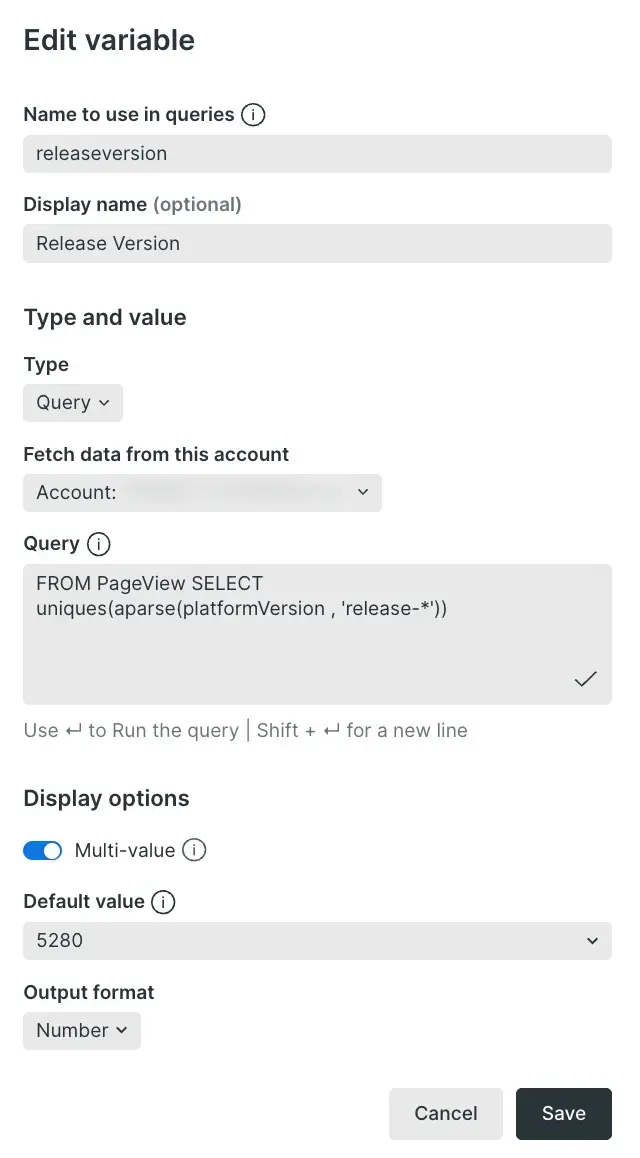
You can create a variable using [`aparse`](https://docs.newrelic.com/docs/query-your-data/nrql-new-relic-query-language/get-started/nrql-syntax-clauses-functions/#func-aparse) to parse the version number:
````sql
SELECT uniques(aparse(platformVersion, 'release-*')) FROM PageView
```
{/*  */}
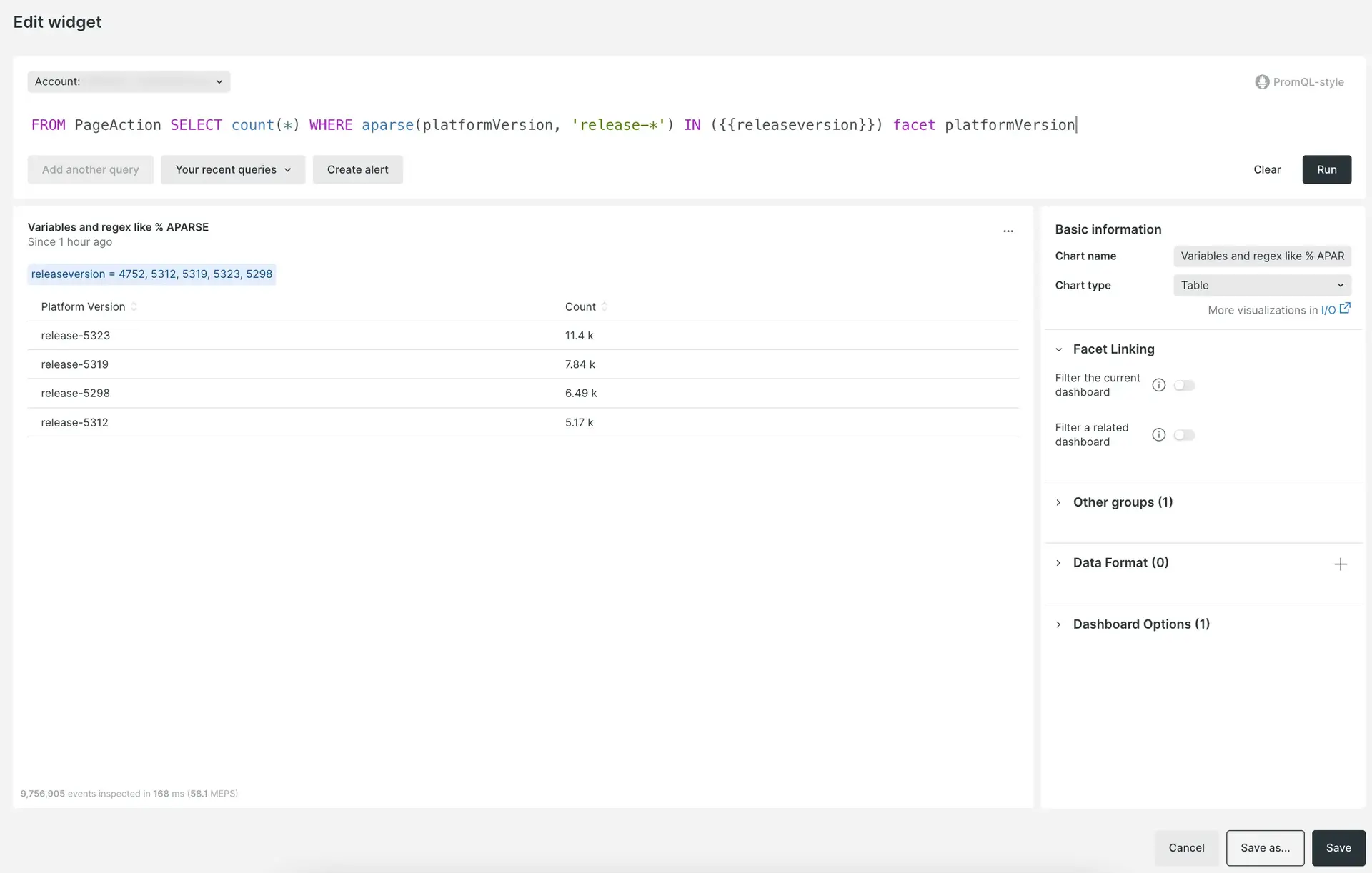
Then create a widget with the following query:
```sql
SELECT count(*) FROM PageAction
WHERE aparse(platformVersion, 'release-*') IN ({{releaseversion}}) FACET platformVersion
```
{/*
*/}
Then create a widget with the following query:
```sql
SELECT count(*) FROM PageAction
WHERE aparse(platformVersion, 'release-*') IN ({{releaseversion}}) FACET platformVersion
```
{/*  */}
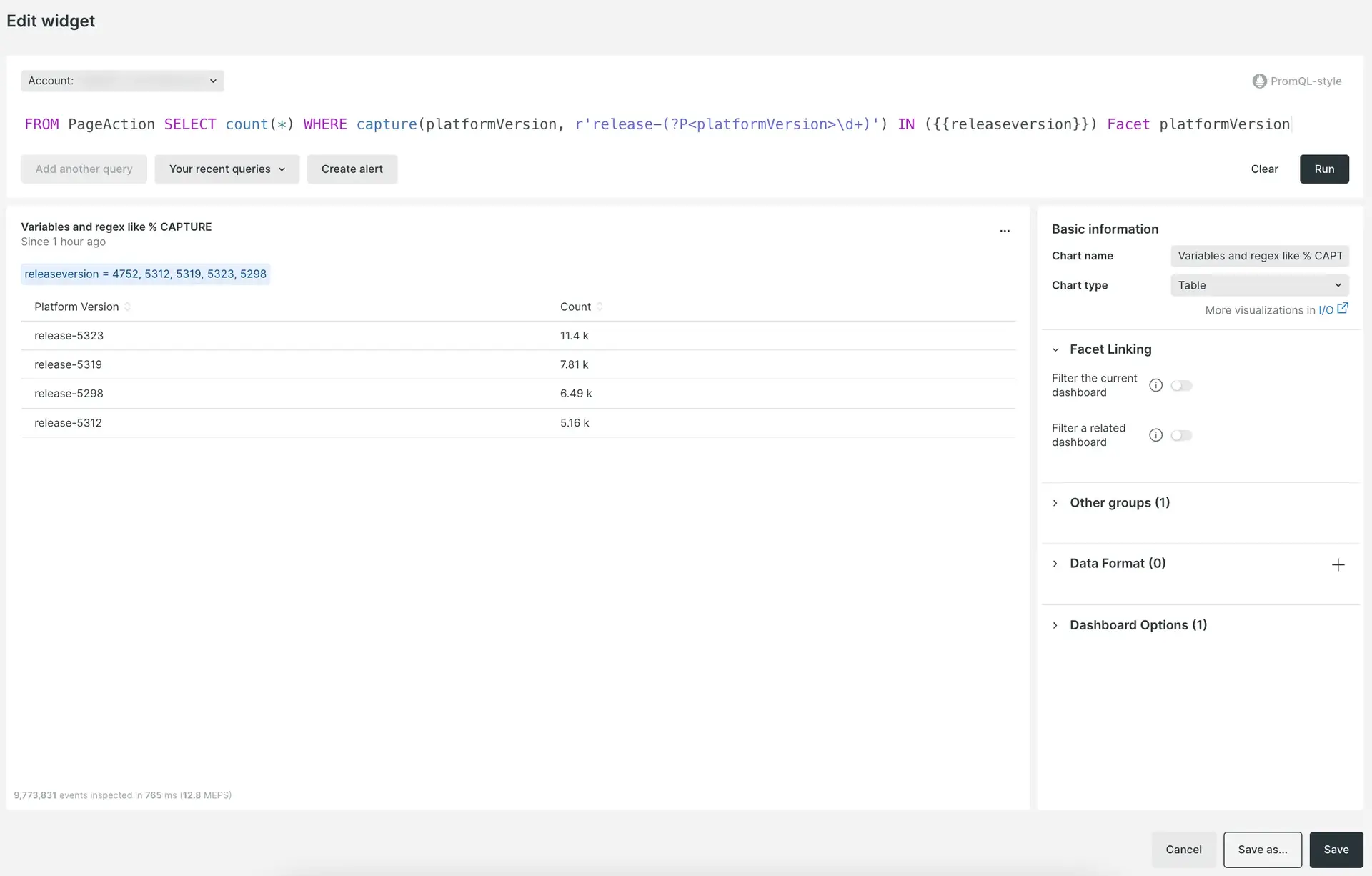
Or if you prefer, you could use the [`capture`](/docs/query-your-data/nrql-new-relic-query-language/get-started/nrql-syntax-clauses-functions/#func-capture) command:
```sql
SELECT count(*) FROM PageAction
WHERE capture(platformVersion, r'release-(?P\d+)') IN ({{releaseversion}}) FACET platformVersion
```
{/*
*/}
Or if you prefer, you could use the [`capture`](/docs/query-your-data/nrql-new-relic-query-language/get-started/nrql-syntax-clauses-functions/#func-capture) command:
```sql
SELECT count(*) FROM PageAction
WHERE capture(platformVersion, r'release-(?P\d+)') IN ({{releaseversion}}) FACET platformVersion
```
{/*  */}
````
**Use variables and regex with LIKE and RLIKE**
You can use `LIKE` and `RLIKE` as template variables to filter data in a dashboard. To use this feature, the value you add when creating the template variable must use the `%` wildcard symbols at the start and end of the value.
Here's an example. You define a string template variable with the following values:
- **Name to use in queries:** line_filter
- **Type:** `Text field`
- **Default value:** %@%.com
- **Output format:** `String`
/\* \*/
You can then create a widget chart and use your variable like this:
```sql
FROM NrdbQuery SELECT user WHERE user LIKE {{like_filter}}
```
/\* \*/
or like this:
```sql
FROM NrdbQuery SELECT user WHERE user RLIKE {{like_filter}}
```
**Use variable `facet` with a NRQL query**
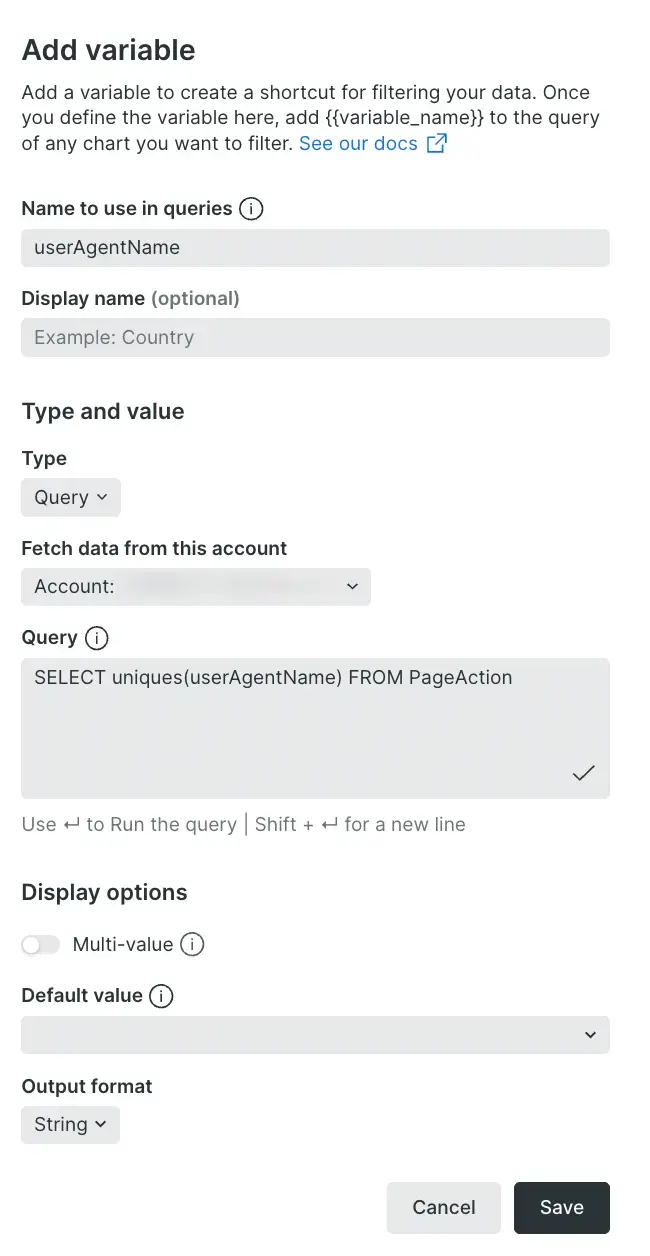
You can create a variable of type NRQL with a string output format and use it after a `FACET` clause to group by different values.
For example, you might create a template variable named `{{userAgentName}}` that would look like:
````sql
SELECT uniques(userAgentName) FROM PageAction
```
{/*
*/}
````
**Use variables and regex with LIKE and RLIKE**
You can use `LIKE` and `RLIKE` as template variables to filter data in a dashboard. To use this feature, the value you add when creating the template variable must use the `%` wildcard symbols at the start and end of the value.
Here's an example. You define a string template variable with the following values:
- **Name to use in queries:** line_filter
- **Type:** `Text field`
- **Default value:** %@%.com
- **Output format:** `String`
/\* \*/
You can then create a widget chart and use your variable like this:
```sql
FROM NrdbQuery SELECT user WHERE user LIKE {{like_filter}}
```
/\* \*/
or like this:
```sql
FROM NrdbQuery SELECT user WHERE user RLIKE {{like_filter}}
```
**Use variable `facet` with a NRQL query**
You can create a variable of type NRQL with a string output format and use it after a `FACET` clause to group by different values.
For example, you might create a template variable named `{{userAgentName}}` that would look like:
````sql
SELECT uniques(userAgentName) FROM PageAction
```
{/*  */}
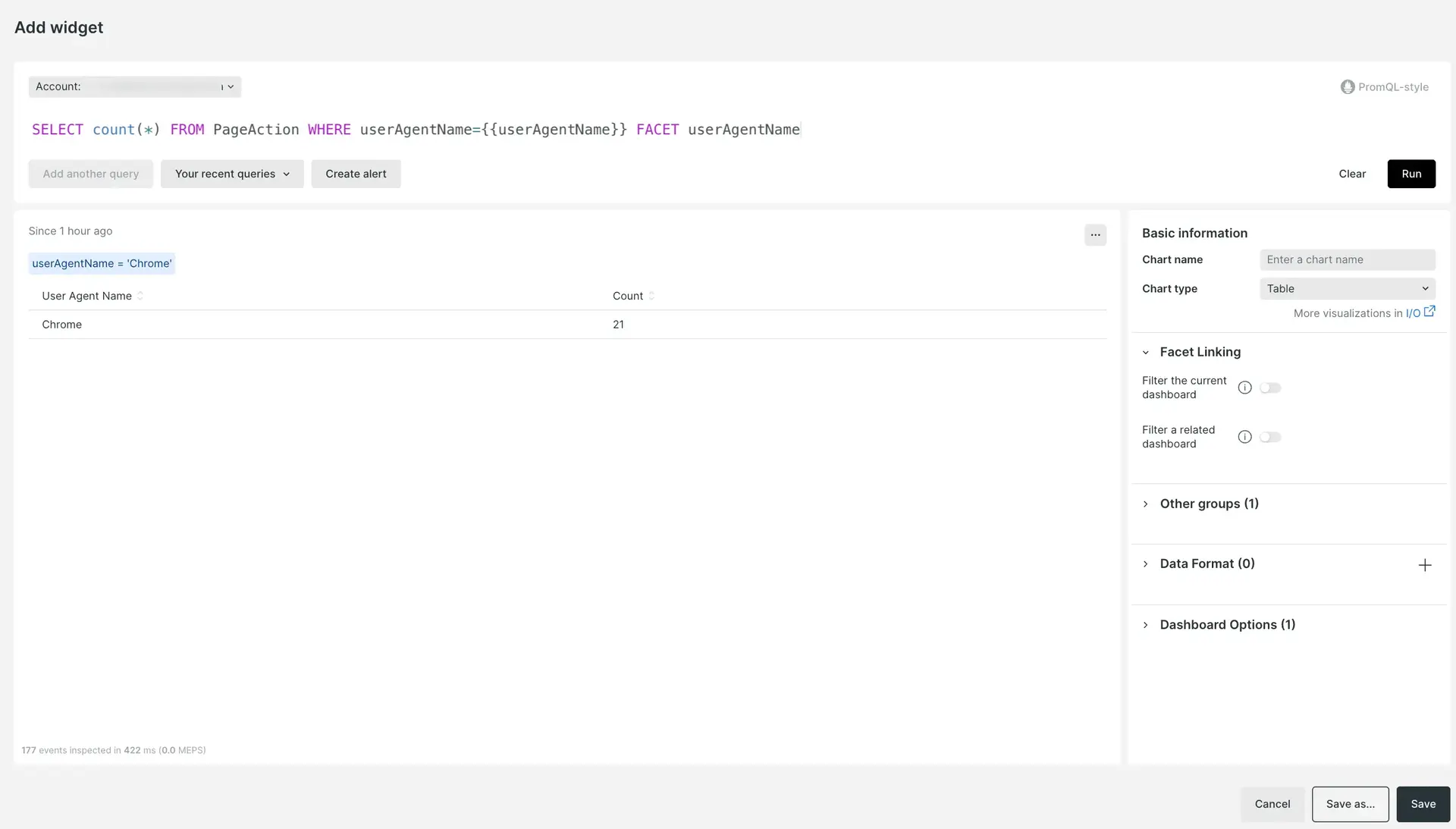
Then you'd create a widget with the following query:
```sql
SELECT count(*) FROM PageAction
WHERE userAgentName={{userAgentName}} FACET userAgentName
```
{/*
*/}
Then you'd create a widget with the following query:
```sql
SELECT count(*) FROM PageAction
WHERE userAgentName={{userAgentName}} FACET userAgentName
```
{/*  */}
````
**Use variables for dynamic grouping**
You can create a variable with an `identifier` output format and use it after a `FACET` clause to group by different values.
For example, you might create a `{{location}}` variable:
- **Name to use in queries:** location
- **Type:** `List`
- **Values separated by commas:** `countryCode` and `city`
- **Output format:** `Identifier`
/\* \*/
Then you'd create a widget with the following query:
```sql
SELECT count(*) FROM PageAction FACET {{location}}
```
/\* \*/
**Use variables to dynamically change the percentile**
You can create a variable with output format `number` and use that inside a percentile function.
For example, you could create a `{{percentile}}` variable:
- **Name to use in queries:** percentile
- **Type:** `List`
- **Values separated by commas:** `55` and `90`
- **Output format:** `Number`
/\* \*/
Then you'd create a widget with the following query:
```sql
SELECT percentile(duration, {{percentile}}) FROM PageAction
```
/\* \*/
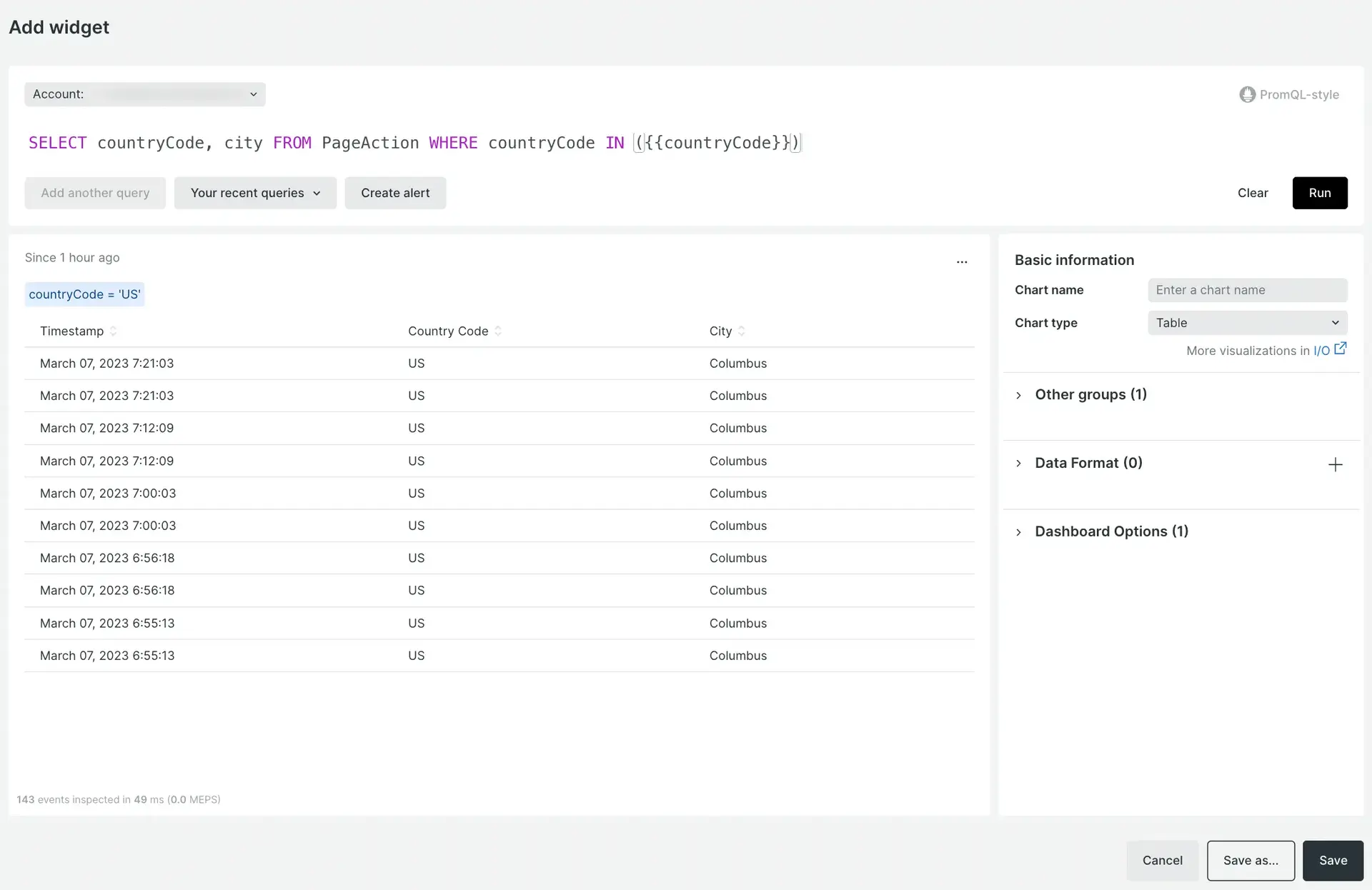
**Use variables to filter**
To use variables for filtering you only need to add the created variable on the right side of a `WHERE` clause, like this:
````sql
SELECT countryCode, city FROM PageAction
WHERE countryCode IN ({{countryCode}})
```
{/*
*/}
````
**Use variables for dynamic grouping**
You can create a variable with an `identifier` output format and use it after a `FACET` clause to group by different values.
For example, you might create a `{{location}}` variable:
- **Name to use in queries:** location
- **Type:** `List`
- **Values separated by commas:** `countryCode` and `city`
- **Output format:** `Identifier`
/\* \*/
Then you'd create a widget with the following query:
```sql
SELECT count(*) FROM PageAction FACET {{location}}
```
/\* \*/
**Use variables to dynamically change the percentile**
You can create a variable with output format `number` and use that inside a percentile function.
For example, you could create a `{{percentile}}` variable:
- **Name to use in queries:** percentile
- **Type:** `List`
- **Values separated by commas:** `55` and `90`
- **Output format:** `Number`
/\* \*/
Then you'd create a widget with the following query:
```sql
SELECT percentile(duration, {{percentile}}) FROM PageAction
```
/\* \*/
**Use variables to filter**
To use variables for filtering you only need to add the created variable on the right side of a `WHERE` clause, like this:
````sql
SELECT countryCode, city FROM PageAction
WHERE countryCode IN ({{countryCode}})
```
{/*  */}
````
**Use ignore time picker option**
By default the “ignore time picker” option is enabled, meaning that the query is always run using the default `1 hour` time range value, even if the time picker in the dashboard has a different value selected (ex. `5 minutes`, `3 hours`, etc). The exception for that case is when the query has an explicit time range set with a `SINCE` clause, like for example:
````sql
SELECT uniques(eventId)
FROM AjaxRequest
SINCE 5 minutes ago
```
The results will be in the range of the last 5 minutes.
When the "ignore time picker" option is turned off, the query will run with the value selected in the time picker. For example, if you set the time picker to 30 minutes, such as in the screenshot below, in the form for editing the variables, the "ignore time picker" field will set to off.
*/}
````
**Use ignore time picker option**
By default the “ignore time picker” option is enabled, meaning that the query is always run using the default `1 hour` time range value, even if the time picker in the dashboard has a different value selected (ex. `5 minutes`, `3 hours`, etc). The exception for that case is when the query has an explicit time range set with a `SINCE` clause, like for example:
````sql
SELECT uniques(eventId)
FROM AjaxRequest
SINCE 5 minutes ago
```
The results will be in the range of the last 5 minutes.
When the "ignore time picker" option is turned off, the query will run with the value selected in the time picker. For example, if you set the time picker to 30 minutes, such as in the screenshot below, in the form for editing the variables, the "ignore time picker" field will set to off.
 This results in the values for the last 30 minutes. When you set the time picker value to **Default** and your query has a `SINCE` clause, the latest value will be used to run the query.
{/*
This results in the values for the last 30 minutes. When you set the time picker value to **Default** and your query has a `SINCE` clause, the latest value will be used to run the query.
{/*  */}
````
**Use variables to select your `FROM` data type**
Sometimes you have queries that apply the same rules to different types of data. Here are examples of two widgets that are identical except for the data type:
- Widget 1:
```sql
SELECT count(*) FROM DataType1 SINCE 1 day ago
```
- Widget 2:
```sql
SELECT count(*) FROM DataType2 SINCE 1 day ago
```
Instead of creating two separate widgets, you can create one widget with a variable that has the **Identifier** for **Output format**. Then, you can use it in a `FROM` clause to query different data types.
For example, you might create a `{{dataType}}` variable of type **List** with two possible values: `DataType1` and `DataType2`. You'd set the **Output Format** to **Identifier**:

Then, you'd create and run the widget:

**Use titles or labels on your list variables**
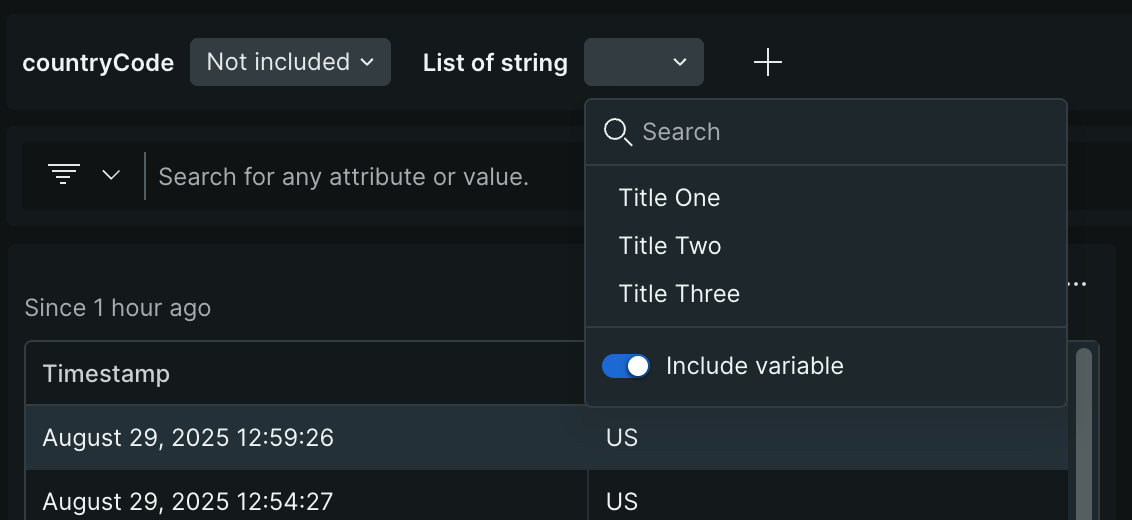
Using the [Manage dashboard JSON](https://docs.newrelic.com/docs/query-your-data/explore-query-data/dashboards/manage-your-dashboard/#manage-json) feature, you can define custom titles or labels for the values in your list-based Variables. This enables you to change what appears in the variable's dropdown menu.
For example, let's say you have a variable like this:
````JSON
{
"name": "list_string",
"items": [
{
"title": null,
"value": "1"
},
{
"title": null,
"value": "2"
},
{
"title": null,
"value": "3"
}
],
"defaultValues": [],
"nrqlQuery": null,
"options": {
"excluded": false
},
"title": "List of string",
"type": "ENUM",
"isMultiSelection": false,
"replacementStrategy": "STRING"
}
```
If you open the JSON and add values to the ```title``` fields:
```JSON
{
"name": "list_string",
"items": [
{
"title": "Title One",
"value": "1"
},
{
"title": "Title Two",
"value": "2"
},
{
"title": "Title Three",
"value": "3"
}
],
"defaultValues": [],
"nrqlQuery": null,
"options": {
"excluded": false
},
"title": "List of string",
"type": "ENUM",
"isMultiSelection": false,
"replacementStrategy": "STRING"
}
```
The titles you've added will be shown in the variable's dropdown. This won't affect the logic for your variable or widgets at all.
*/}
````
**Use variables to select your `FROM` data type**
Sometimes you have queries that apply the same rules to different types of data. Here are examples of two widgets that are identical except for the data type:
- Widget 1:
```sql
SELECT count(*) FROM DataType1 SINCE 1 day ago
```
- Widget 2:
```sql
SELECT count(*) FROM DataType2 SINCE 1 day ago
```
Instead of creating two separate widgets, you can create one widget with a variable that has the **Identifier** for **Output format**. Then, you can use it in a `FROM` clause to query different data types.
For example, you might create a `{{dataType}}` variable of type **List** with two possible values: `DataType1` and `DataType2`. You'd set the **Output Format** to **Identifier**:

Then, you'd create and run the widget:

**Use titles or labels on your list variables**
Using the [Manage dashboard JSON](https://docs.newrelic.com/docs/query-your-data/explore-query-data/dashboards/manage-your-dashboard/#manage-json) feature, you can define custom titles or labels for the values in your list-based Variables. This enables you to change what appears in the variable's dropdown menu.
For example, let's say you have a variable like this:
````JSON
{
"name": "list_string",
"items": [
{
"title": null,
"value": "1"
},
{
"title": null,
"value": "2"
},
{
"title": null,
"value": "3"
}
],
"defaultValues": [],
"nrqlQuery": null,
"options": {
"excluded": false
},
"title": "List of string",
"type": "ENUM",
"isMultiSelection": false,
"replacementStrategy": "STRING"
}
```
If you open the JSON and add values to the ```title``` fields:
```JSON
{
"name": "list_string",
"items": [
{
"title": "Title One",
"value": "1"
},
{
"title": "Title Two",
"value": "2"
},
{
"title": "Title Three",
"value": "3"
}
],
"defaultValues": [],
"nrqlQuery": null,
"options": {
"excluded": false
},
"title": "List of string",
"type": "ENUM",
"isMultiSelection": false,
"replacementStrategy": "STRING"
}
```
The titles you've added will be shown in the variable's dropdown. This won't affect the logic for your variable or widgets at all.
 ````
**Use variables in widget titles**
You can use template variables in widget titles to create dynamic titles that update automatically when you change variable values. This is useful for providing context about what data is being displayed.
You can add variables to widget titles either through the UI when editing a widget or by using the [dashboard JSON](https://docs.newrelic.com/docs/query-your-data/explore-query-data/dashboards/manage-your-dashboard/#manage-json).
For example, if you have a variable named `{{products}}` with values like "Alerts", "APM", "dashboards", and "Catalog", you can create a widget with a dynamic title like `Page views per nerdlet: {{products}}`:
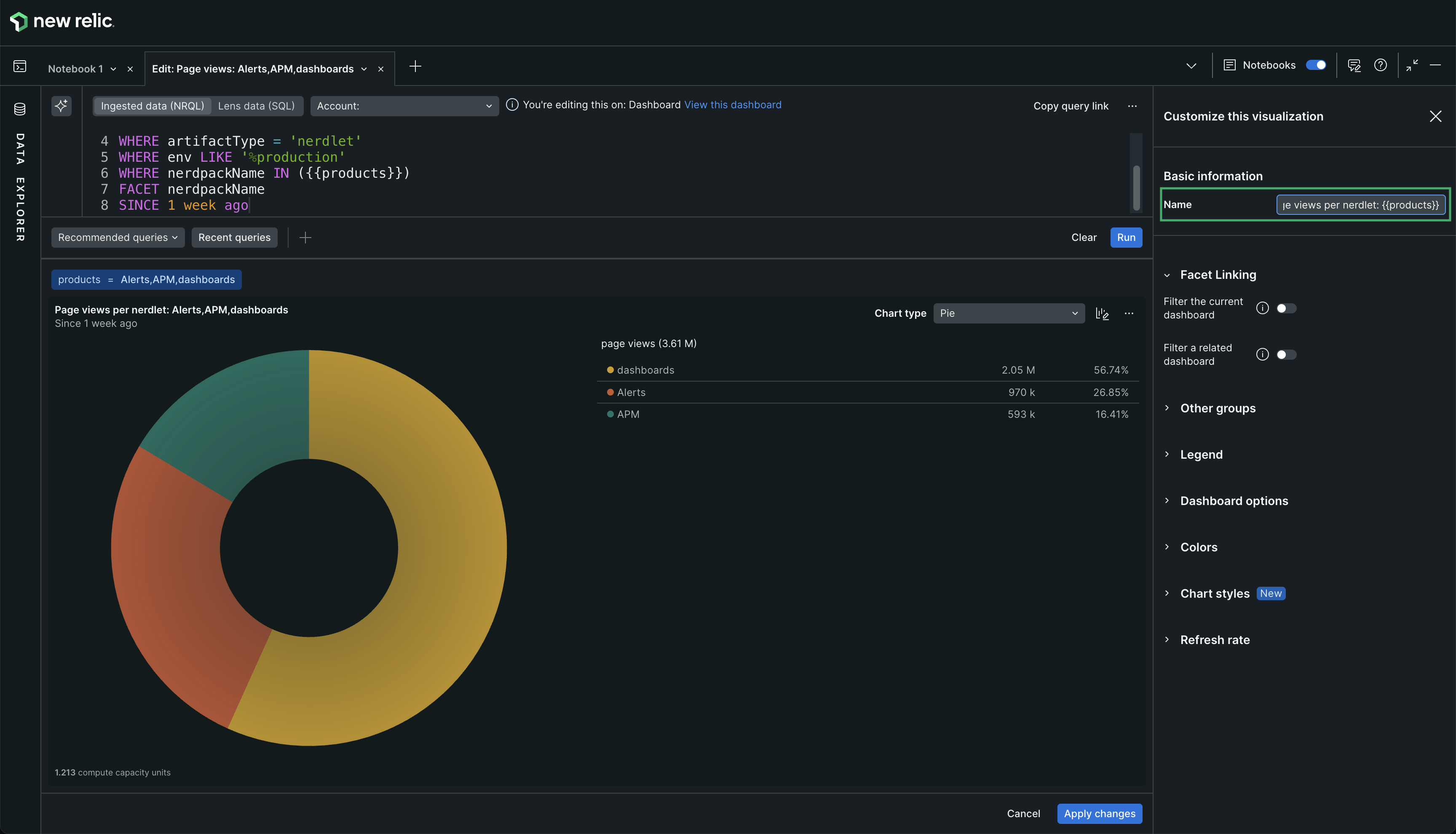
When you select "Alerts" from the variable dropdown, the widget title automatically updates to display the selected value. If you multi-select "Alerts", "APM", and "dashboards", the title updates to show all selected values.
This feature works with any template variable type (Query, List, or Text field) and helps users understand what data they're viewing without having to check the variable filters.
**Use variables in markdown widgets**
You can use template variables in markdown widgets to create dynamic text content, documentation, or diagrams that update based on variable selection. This is particularly powerful for creating contextual notes or visualizations like Mermaid diagrams.
For example, if you have a variable `{{products}}` with values like "Alerts", "APM", "dashboards", and "Catalog", you can use it in markdown content in different ways:
**Example 1: Dynamic text content**
You can include the variable (`{{products}}`) directly in your markdown text to create dynamic documentation that updates based on the selection:

**Example 2: Dynamic Mermaid diagrams**
You can also use the variable (`{{products}}`) within the markdown text of Mermaid diagrams to create flowcharts that update dynamically:
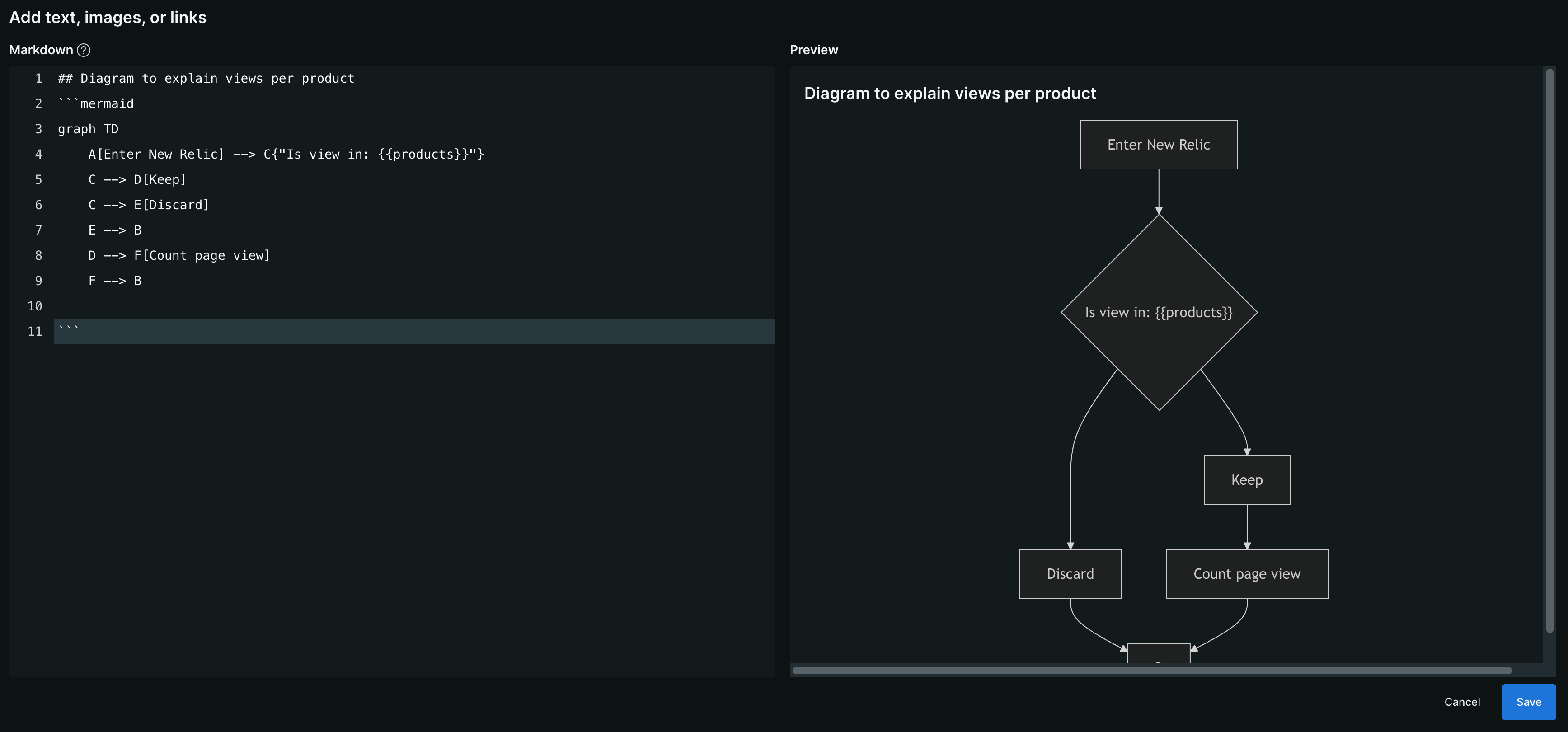
In this example, the diagram shows a decision flow where the `{{products}}` variable determines which data to keep or discard. When you change the variable selection, the diagram updates to reflect the selected products.
> #### 💡 NOTE
>
> When editing a markdown widget, the preview mode shows the variable name (for example, `{{products}}`), not the actual value. However, when you save and view the dashboard, the variables are replaced with their actual values.
````
**Use variables in widget titles**
You can use template variables in widget titles to create dynamic titles that update automatically when you change variable values. This is useful for providing context about what data is being displayed.
You can add variables to widget titles either through the UI when editing a widget or by using the [dashboard JSON](https://docs.newrelic.com/docs/query-your-data/explore-query-data/dashboards/manage-your-dashboard/#manage-json).
For example, if you have a variable named `{{products}}` with values like "Alerts", "APM", "dashboards", and "Catalog", you can create a widget with a dynamic title like `Page views per nerdlet: {{products}}`:

When you select "Alerts" from the variable dropdown, the widget title automatically updates to display the selected value. If you multi-select "Alerts", "APM", and "dashboards", the title updates to show all selected values.
This feature works with any template variable type (Query, List, or Text field) and helps users understand what data they're viewing without having to check the variable filters.
**Use variables in markdown widgets**
You can use template variables in markdown widgets to create dynamic text content, documentation, or diagrams that update based on variable selection. This is particularly powerful for creating contextual notes or visualizations like Mermaid diagrams.
For example, if you have a variable `{{products}}` with values like "Alerts", "APM", "dashboards", and "Catalog", you can use it in markdown content in different ways:
**Example 1: Dynamic text content**
You can include the variable (`{{products}}`) directly in your markdown text to create dynamic documentation that updates based on the selection:

**Example 2: Dynamic Mermaid diagrams**
You can also use the variable (`{{products}}`) within the markdown text of Mermaid diagrams to create flowcharts that update dynamically:

In this example, the diagram shows a decision flow where the `{{products}}` variable determines which data to keep or discard. When you change the variable selection, the diagram updates to reflect the selected products.
> #### 💡 NOTE
>
> When editing a markdown widget, the preview mode shows the variable name (for example, `{{products}}`), not the actual value. However, when you save and view the dashboard, the variables are replaced with their actual values.