Nuestro agente New Relic .NET MAUI monitorea su aplicación móvil .NET MAUI y proporciona información profunda y valiosa sobre el rendimiento, los errores y la experiencia del usuario de su aplicación. Una vez que instale y configure el agente .NET MAUI, podrá:
- Capture C# errors: Identifique y solucione problemas rápidamente.
- Track network requests: Vea cómo interactúa su aplicación con el backend.
- Use distributed tracing: Profundice en las excepciones manejadas y encuentre la causa raíz.
- Create custom events and metrics: Comprenda cómo interactúa su usuario con su aplicación.
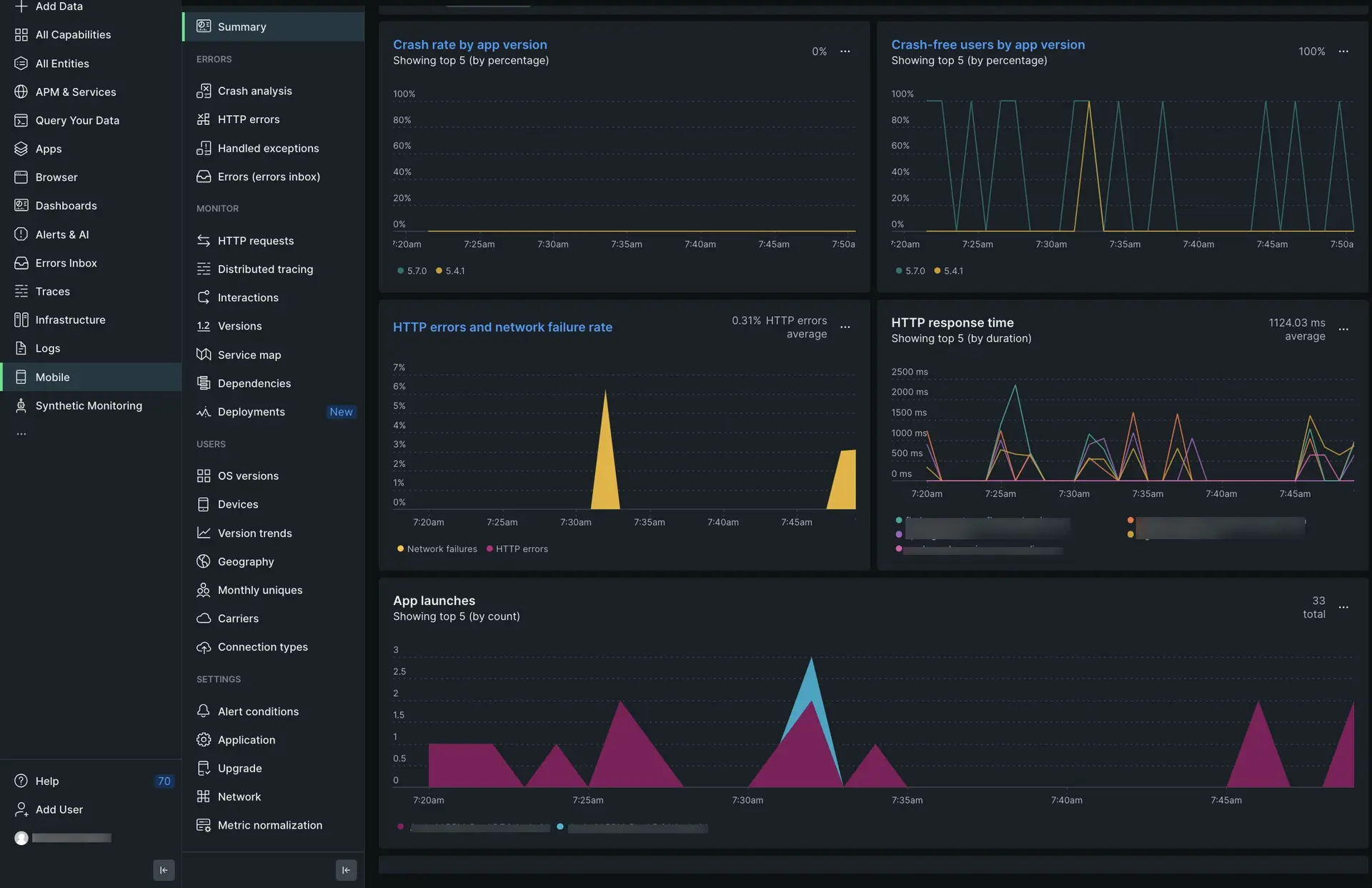
one.newrelic.com > All capabilities > Mobile > (select your .NET MAUI app) > Summary: vea datos de .NET MAUI, realice un seguimiento de las solicitudes y errores HTTP y monitor el rendimiento de su aplicación a lo largo del tiempo.
(Recomendado) Instalación guiada
Para instalar el agente .NET MAUI, siga nuestra instalación guiada, ubicada directamente en la UI.
Instalación manual
Si necesita instalar el agente manualmente, siga estos pasos:
Revisa los requisitos
Antes de instalar nuestro agente .NET MAUI, asegúrese de que su aplicación cumpla con estos requisitos de versión:
- .NET versión 7.0 o superior
- Para aplicaciones nativas de Android: Android 7 (API 24) o superior
- Para aplicaciones nativas de iOS:
- iOS 16 o superior, utilizando la última versión de Xcode
Agregue el agente .NET MAUI a su proyecto
Primero, deberá agregar nuestro agente, un paquete NuGet, a su proyecto MAUI:
- Abra su solución .NET MAUI, seleccione el proyecto al que desea agregar el agente y abra su menú contextual.
- Haga clic en Add > Add NuGet packages y luego seleccione
NewRelic.MAUI.Plugin.
Copie el token de su aplicación desde la UI
El token de la aplicación se utiliza para que New Relic autentique los datos de tu aplicación .NET MAUI.
Para ver y copiar el token de su aplicación en la UI de New Relic:
Vaya a one.newrelic.com, haga clic en Integrations & Agents y luego haga clic en Mobile.
Seleccione su aplicación .NET MAUI.
Vaya a Settings > Application y copie el Application token mostrado.
Agregará este token de aplicación en el siguiente paso.
Agregue nuestro archivo de configuración del agente a su proyecto .NET MAUI
En su proyecto, abra MauiProgram.cs y agregue el siguiente código:
using NewRelic.MAUI.Plugin;
... public static MauiApp CreateMauiApp() { var builder = MauiApp.CreateBuilder(); builder .UseMauiAppApp_()_ .ConfigureFonts(fonts => { fonts.AddFont("OpenSans-Regular.ttf", "OpenSansRegular"); fonts.AddFont("OpenSans-Semibold.ttf", "OpenSansSemibold"); });
builder.ConfigureLifecycleEvents(AppLifecycle => { #if ANDROID AppLifecycle.AddAndroid(android => android .OnCreate((activity, savedInstanceState) => StartNewRelic())); #endif
#if IOS AppLifecycle.AddiOS(iOS => iOS.WillFinishLaunching((_,__) => { StartNewRelic(); return false; })); #endif });
return builder.Build(); }
private static void StartNewRelic() { CrossNewRelic.Current.HandleUncaughtException(); // Set optional agent configuration // Options are: crashReportingEnabled, loggingEnabled, logLevel, collectorAddress, // crashCollectorAddress, analyticsEventEnabled, networkErrorRequestEnabled, // networkRequestEnabled, interactionTracingEnabled, webViewInstrumentation, // fedRampEnabled, offlineStorageEnabled, newEventSystemEnabled, backgroundReportingEnabled // AgentStartConfiguration agentConfig = new AgentStartConfiguration(crashReportingEnabled:false);
if (DeviceInfo.Current.Platform == DevicePlatform.Android) { CrossNewRelic.Current.Start("APP_TOKEN_HERE"); // Start with optional agent configuration // CrossNewRelic.Current.Start("APP_TOKEN_HERE", agentConfig); } else if (DeviceInfo.Current.Platform == DevicePlatform.iOS) { CrossNewRelic.Current.Start("APP_TOKEN_HERE"); // Start with optional agent configuration // CrossNewRelic.Current.Start("APP_TOKEN_HERE", agentConfig); } }Asegúrese de pegar token de su aplicación en appToken = "<APP-TOKEN-HERE>" en el código anterior. Si implementa su aplicación híbrida en la plataforma iOS y Android, deberá agregar dos tokens separados: uno para iOS y otro para Android.
Evento de seguimiento de pantalla
El plug-in móvil de .NET MAUI permite rastrear eventos de navegación dentro de .NET MAUI Shell. Hay dos formas de inicializar esto dependiendo del momento de inicio de su aplicación en App.xaml.cs.
Option 1: In the App Constructor Puede llamar al método de seguimiento directamente en el constructor inmediatamente después de configurar el MainPage.
public App(){ InitializeComponent(); MainPage = new AppShell(); CrossNewRelic.Current.TrackShellNavigatedEvents();}Option 2: In the OnStart Method (Recommended for timing/NullReferenceException issues) Si el shell de su aplicación no está completamente inicializado durante la ejecución del constructor, llamar al rastreador de navegación puede provocar un System.NullReferenceException. Para evitar esto, mueve la llamada al método de ciclo de vida OnStart() de MAUI:
public App(){  InitializeComponent();  MainPage = new AppShell();}
protected override void OnStart(){ base.OnStart(); CrossNewRelic.Current.TrackShellNavigatedEvents();}Se recomienda llamar a este método al iniciar el agente. Estos eventos sólo se registrarán una vez completada la navegación. Puede encontrar estos datos a través del explorador de datos en MobileBreadcrumb (bajo el nombre ShellNavigated) o mediante una consulta NRQL:
SELECT * FROM MobileBreadcrumb WHERE name = 'ShellNavigated' SINCE 24 HOURS AGOLa ruta de navegación contendrá tres atributos:
Current: El URI de la página actual.Source: El tipo de navegación que ocurrió.Previous: El URI de la página anterior. Esto no existirá si la página anterior era nula.
Personalizar la instrumentación del agente.
¿Necesitas personalizar tu instrumentación del agente? Nuestros métodos públicos de API de SDK móvil le permiten recopilar datos personalizados, configurar ajustes predeterminados y más.
Las siguientes personalizaciones están disponibles para el agente .NET MAUI.
Si quieres... | Utilice este método |
|---|---|
Registre la ruta de navegación para rastrear la actividad de la aplicación que puede ser útil para resolver problemas. | |
Seguimiento de un método como una interacción. | |
Registro métrico personalizado. | |
Registro de excepciones manejadas. | |
Grabar atributo personalizado y evento. | Hay varias formas de reportar atributo personalizado y evento:
|
Realice un seguimiento de las solicitudes y fallas de la red personalizada. | Seguimiento de solicitudes HTTP |
Apague el agente. | |
Activa/desactiva la configuración predeterminada de monitoreo de móviles. | |
Ejecute un informe de fallo de prueba. |
Resolución de problemas
Solucionar errores HTTP
¿Faltan datos HTTP en la UI?
Después de instalar el agente .NET MAUI, espere al menos 5 minutos. Si no aparecen datos HTTP en las páginas UI de errores HTTP y solicitudes HTTP, asegúrese de haber utilizado HttpMessageHandler en HttpClient.
Faltan datos de rastreo distribuido en la UI
El rastreo distribuido no funciona cuando se emplean métodos estáticos para informar datos HTTP. Para habilitar el rastreo distribuido, debe emplear HttpMessageHandler con HttpClient.
HttpClient myClient = new HttpClient(CrossNewRelic.Current.GetHttpMessageHandler());
var response = await myClient.GetAsync(new Uri("https://jsonplaceholder.typicode.com/todos/1")); if (response.IsSuccessStatusCode) { var content = await response.Content.ReadAsStringAsync(); } else { Console.WriteLine("Http request failed"); }La aplicación falla con TrackShellNavigatedEvents
Si experimenta un System.NullReferenceException al llamar a CrossNewRelic.Current.TrackShellNavigatedEvents() en el constructor App(), es probable que se deba a que el shell de la aplicación aún no ha arrancado por completo. Para resolver esto, mueva la llamada fuera del constructor y al método de ciclo de vida OnStart() de MAUI dentro de su archivo App.xaml.cs (consulte la sección Eventos de seguimiento de pantalla para ver ejemplos de código).