Nosso agente New Relic .NET MAUI monitora seu aplicativo móvel .NET MAUI e fornece insights profundos sobre o desempenho, os erros e a experiência do usuário do seu aplicativo. Depois de instalar e configurar o agente .NET MAUI, você será capaz de:
- Capture C# errors: Identifique e corrija problemas rapidamente.
- Track network requests: Veja como seu aplicativo interage com o backend.
- Use distributed tracing: Analise as exceções tratadas e encontre a causa raiz.
- Create custom events and metrics: Entenda como seu usuário interage com seu aplicativo.
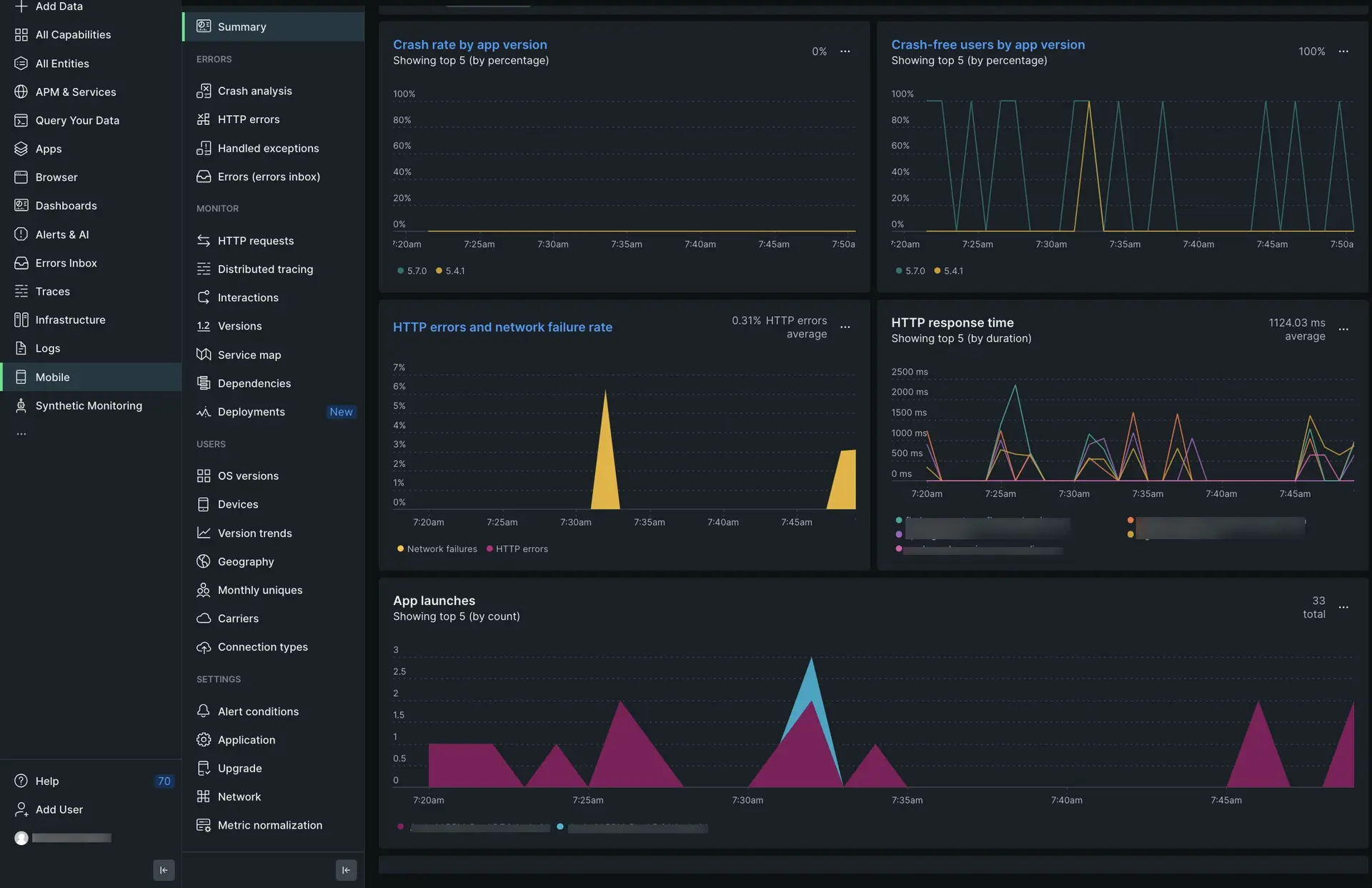
one.newrelic.com > All capabilities > Mobile > (select your .NET MAUI app) > Summary: visualize dados do .NET MAUI, rastreie solicitações e erros HTTP e monitor o desempenho do seu aplicativo ao longo do tempo.
(Recomendado) Instalação guiada
Para instalar o agente .NET MAUI, siga nossa instalação guiada, localizada diretamente na interface.
Instalação manual
Se precisar instalar o agente manualmente, siga estas etapas:
Revise os requisitos
Antes de instalar nosso agente .NET MAUI, certifique-se de que seu aplicativo atenda a estes requisitos de versão:
- .NET versão 7.0 ou superior
- Para aplicativos nativos do Android: Android 7 (API 24) ou superior
- Para aplicativos nativos do iOS:
- iOS 16 ou superior, usando a versão mais recente do Xcode
Adicione o agente .NET MAUI ao seu projeto
Primeiro, você precisará adicionar nosso agente, um pacote NuGet, ao seu projeto MAUI:
- Abra sua solução .NET MAUI, selecione o projeto ao qual deseja adicionar o agente e abra seu menu de contexto.
- Clique em Add > Add NuGet packages e selecione
NewRelic.MAUI.Plugin.
Copie o token do seu aplicativo da interface
O token do aplicativo é usado pelo New Relic para autenticar os dados do seu aplicativo .NET MAUI.
Para visualizar e copiar o token do seu aplicativo na interface do New Relic:
Vá para one.newrelic.com, clique em Integrations & Agents e depois clique em Mobile.
Selecione seu aplicativo .NET MAUI.
Vá para Settings > Application e copie o Application token exibido.
Você adicionará esse token de aplicativo na próxima etapa.
Adicione nosso arquivo de configuração do agente ao seu projeto .NET MAUI
No seu projeto, abra MauiProgram.cs e adicione o seguinte código:
using NewRelic.MAUI.Plugin;
... public static MauiApp CreateMauiApp() { var builder = MauiApp.CreateBuilder(); builder .UseMauiAppApp_()_ .ConfigureFonts(fonts => { fonts.AddFont("OpenSans-Regular.ttf", "OpenSansRegular"); fonts.AddFont("OpenSans-Semibold.ttf", "OpenSansSemibold"); });
builder.ConfigureLifecycleEvents(AppLifecycle => { #if ANDROID AppLifecycle.AddAndroid(android => android .OnCreate((activity, savedInstanceState) => StartNewRelic())); #endif
#if IOS AppLifecycle.AddiOS(iOS => iOS.WillFinishLaunching((_,__) => { StartNewRelic(); return false; })); #endif });
return builder.Build(); }
private static void StartNewRelic() { CrossNewRelic.Current.HandleUncaughtException(); // Set optional agent configuration // Options are: crashReportingEnabled, loggingEnabled, logLevel, collectorAddress, // crashCollectorAddress, analyticsEventEnabled, networkErrorRequestEnabled, // networkRequestEnabled, interactionTracingEnabled, webViewInstrumentation, // fedRampEnabled, offlineStorageEnabled, newEventSystemEnabled, backgroundReportingEnabled // AgentStartConfiguration agentConfig = new AgentStartConfiguration(crashReportingEnabled:false);
if (DeviceInfo.Current.Platform == DevicePlatform.Android) { CrossNewRelic.Current.Start("APP_TOKEN_HERE"); // Start with optional agent configuration // CrossNewRelic.Current.Start("APP_TOKEN_HERE", agentConfig); } else if (DeviceInfo.Current.Platform == DevicePlatform.iOS) { CrossNewRelic.Current.Start("APP_TOKEN_HERE"); // Start with optional agent configuration // CrossNewRelic.Current.Start("APP_TOKEN_HERE", agentConfig); } }Certifique-se de colar o(s) token(s) do seu aplicativo em appToken = "<APP-TOKEN-HERE>" no código acima. Se você implantar seu aplicativo híbrido nas plataformas iOS e Android, precisará adicionar dois tokens separados: um para iOS e outro para Android.
Evento de rastreamento de tela
O plug-in móvel do .NET MAUI permite rastrear eventos de navegação no .NET MAUI Shell. Existem duas maneiras de inicializar isso, dependendo do tempo de inicialização do seu aplicativo em App.xaml.cs.
Option 1: In the App Constructor Você pode chamar o método de rastreamento diretamente no construtor imediatamente após definir o MainPage.
public App(){ InitializeComponent(); MainPage = new AppShell(); CrossNewRelic.Current.TrackShellNavigatedEvents();}Option 2: In the OnStart Method (Recommended for timing/NullReferenceException issues) Se o shell do seu aplicativo não estiver totalmente inicializado durante a execução do construtor, chamar o rastreador de navegação pode resultar em um System.NullReferenceException. Para evitar isso, mova a chamada para o método de ciclo de vida OnStart() do MAUI:
public App(){  InitializeComponent();  MainPage = new AppShell();}
protected override void OnStart(){ base.OnStart(); CrossNewRelic.Current.TrackShellNavigatedEvents();}Recomenda-se chamar esse método ao iniciar o agente. Estes eventos só serão registrados após a conclusão da navegação. Você pode encontrar esses dados por meio do explorador de dados em MobileBreadcrumb (sob o nome ShellNavigated) ou por meio de uma consulta NRQL:
SELECT * FROM MobileBreadcrumb WHERE name = 'ShellNavigated' SINCE 24 HOURS AGOAs trilhas conterão três atributos:
Current: O URI da página atual.Source: O tipo de navegação que ocorreu.Previous: O URI da página anterior. Isso não existirá se a página anterior for nula.
Personalize a instrumentação do agente
Precisa customizar sua instrumentação de agente? Nossos métodos públicos de API do SDK móvel permitem coletar dados personalizados, definir configurações padrão e muito mais.
As personalizações a seguir estão disponíveis para o agente .NET MAUI.
Se você quiser... | Use este método |
|---|---|
Registre trilhas para rastrear a atividade do aplicativo que pode ser útil para a resolução de problemas de travamento. | |
Acompanhe um método como uma interação. | |
Registro métrico personalizado. | |
Registrar exceções tratadas. | |
Grave atributo personalizado e evento. | Existem diversas formas de reportar atributo personalizado e evento:
|
Rastreie solicitações e falhas de rede personalizadas. | |
Desligue o agente. | |
Habilitar/desabilitar configurações padrão de monitoramento de Mobile. | |
Execute um relatório de falha de teste. |
Resolução de problemas
Solucionar erros de HTTP
Faltam dados HTTP na interface?
Após instalar o agente .NET MAUI, aguarde pelo menos 5 minutos. Se nenhum dado HTTP aparecer nas páginas de interface de erros HTTP e solicitações HTTP, certifique-se de ter usado HttpMessageHandler em HttpClient.
Dados de rastreamento distribuídos ausentes na interface
O rastreamento distribuído não funciona quando você usa métodos estáticos para relatar dados HTTP. Para habilitar o rastreamento distribuído, você deve usar HttpMessageHandler com HttpClient.
HttpClient myClient = new HttpClient(CrossNewRelic.Current.GetHttpMessageHandler());
var response = await myClient.GetAsync(new Uri("https://jsonplaceholder.typicode.com/todos/1")); if (response.IsSuccessStatusCode) { var content = await response.Content.ReadAsStringAsync(); } else { Console.WriteLine("Http request failed"); }Falhas no aplicativo com TrackShellNavigatedEvents
Se você encontrar um System.NullReferenceException ao chamar CrossNewRelic.Current.TrackShellNavigatedEvents() no construtor App(), é provável que seja porque o shell do aplicativo ainda não concluiu totalmente a inicialização. Para resolver isso, mova a chamada para fora do construtor e para o método de ciclo de vida OnStart() do MAUI dentro do seu arquivo App.xaml.cs (consulte a seção Eventos de Rastreamento de Tela para obter exemplos de código).